
Each week
Know Who's Playing Before You Make the Pairings.
Every weekly golf organizer knows the routine: a few players respond immediately, others wait until the last minute, and someone changes their mind after you've started arranging the groups.
Grey Tabby Golf gives your players a simple way to confirm whether they're playing, while giving you an up-to-date view of the field. No more piecing together the headcount from texts, emails, and last-minute conversations.
Open Signup for Your Event
Once your event is ready, open signup and set the number of players you can accommodate. You can also include instructions for your group, such as where to meet or anything players should know before the round.
Your event will appear on the group's Upcoming Events page, where golfers can see the date, course, starting time, and available spots.
You're in control of when registration opens and closes. Opening signup doesn't automatically send invitations. You decide when to notify your group, and you can close registration whenever you're ready to finalize the field.
Invite Your Players
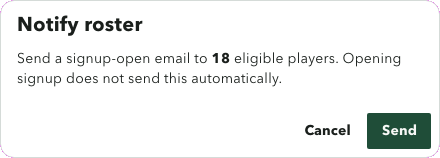
When you want the group to answer, choose Notify roster. Grey Tabby Golf shows how many eligible players will receive the email. Review that count, then choose Send.
The email goes to roster players who have an email address and have not opted out. Guests are not included.
The message gives those players a link to this event's signup page. Opening the link signs them in so they can answer. It does not mark them playing or out.
What Players See
Players can browse upcoming events and view event details without signing in.
When they're ready to RSVP, they use the magic link sent to their registered email address. Returning golfers with an active remembered session can respond immediately without requesting another link.
Once signed in, players choose Playing or Not Playing and save their response. Those who are playing can also select whether they're walking or riding and leave a note for the organizer.
A magic link doesn't automatically register anyone. Players remain in control of their RSVP, and they can update it while registration is open.
Grey Tabby Golf remembers authorized players for up to 60 days, so they don't have to repeat the verification process every week.
Manage Capacity and Waitlists
Set the capacity to the number of players the event can take. The signup page shows how many of those spots are filled.
When the field is full, the next player who chooses Playing is placed on the waitlist. That player sees the waitlist status and their place in line. Your response list shows the same status.
When a spot opens, Grey Tabby Golf moves the player who has been waiting the longest into the field and emails that player.
Keep Track of Changes
Grey Tabby Golf gives you an up-to-date view of who's Playing, who's Out, who's on the waitlist, and who hasn't responded.
You can review player notes, make registration changes when necessary, and see how many spots remain available.
Whenever a player's RSVP status changes, Grey Tabby Golf sends a confirmation email to their registered address. If the organizer makes the change, the email identifies it as an organizer update.
When a player cancels, an available spot can be filled by the next eligible golfer on the waitlist.
Instead of piecing together the field from text messages and emails, you have one place to see who's coming.
Ready to Organize the Groups
Once the responses are in, you have a much clearer picture of who's coming. Grey Tabby Golf lets you use that field to automatically assign handicap-based flights, create playing groups, and calculate tee times.
And if someone changes their plans, you can update the registration before finalizing the assignments.
Start a 30-day free trial
A payment method is required. Billing starts when the trial ends unless you cancel.