
Getting started
Add Your Golf Courses Once. Use Them Every Week.
Whether your group plays the same course every Thursday or rotates among several courses, Grey Tabby Golf makes it easy to keep the courses you play ready for future events.
Search for a golf course, review its tees and ratings, and add it to My Courses. Once it's saved, you can select it whenever you create a new event.
Find and Add a Golf Course
From the Courses page, select Find a golf course and search by name.
Choose a course from the results to preview its available tee sets, course ratings, slope ratings, and hole information. Grey Tabby Golf retrieves the information needed to set up the course for scoring and handicap calculations.
Once you've confirmed it's the correct course, click Add to My Courses.
Grey Tabby Golf saves the course and its available tee sets, including the hole-by-hole information provided by the course directory.
The course is now ready to use whenever you create an event. There's no need to search for it again next week.
Course and Tee Information
Grey Tabby Golf stores the course's tee ratings and hole information, so you don't have to enter those details each time your group plays there.
For a handicap game, it uses the player's Handicap Index with the Course Rating, Slope Rating, and par of the tee they are playing. That produces the Course Handicap for the round. The stroke index on each hole then decides which holes receive those strokes.
A tee set can have different ratings and stroke indexes for men and women. Grey Tabby Golf uses the applicable information when calculating each player's Course Handicap and allocating strokes across the holes. It stores the Handicap Index you already entered. It does not look up a new one.
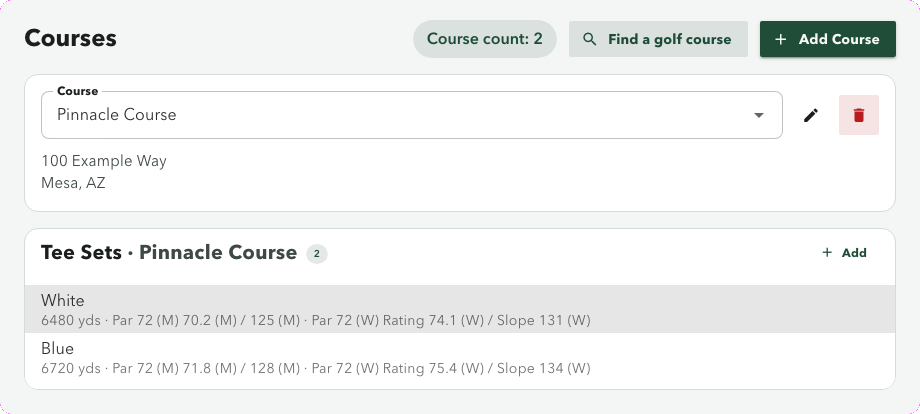
On the Courses page, choose the course and then a tee set. Tee Sets shows the yardage, par, rating, and slope. Open Holes to review or correct par, stroke index, and yardage.
If women's stroke indexes did not come with the course, the preview says they are not available from that source. You can add them later on the Courses page. Grey Tabby Golf does not fill them in for you.
What If Your Course Isn't Available?
Can't find your course in the directory? No problem. You can add it manually.
From the Courses page, select Add Course and enter the course name and any additional information you have.
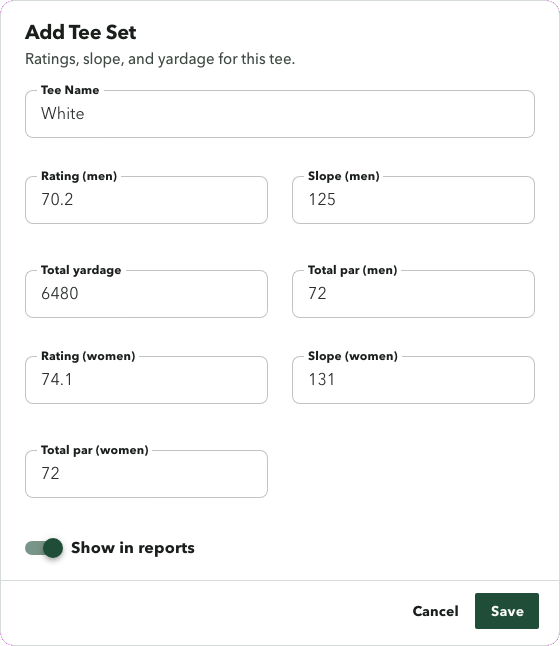
Once the course is created, add its tee sets, including the available ratings, slopes, yardages, and par information. You can also create and maintain the hole-by-hole scorecard, including stroke indexes.
This option is also useful when a downloaded course has missing or outdated information. You can review and correct the course details in Grey Tabby Golf before using them for an event.
Whether you download a course or enter it yourself, the information stays available for future rounds.
Save Courses for Future Events
Once a course is in My Courses, it is listed whenever you create an event. Choose it in the Course field. If the group plays several courses through the season, save each one and pick the location for that week.
Repeat Event keeps the course from the event you are repeating.
A player can also keep a default tee for each course. That preference is saved on the player. See Build the roster for how to set it.
Ready to Create Your Weekly Game
Your courses and your players are ready. Create a new event, or repeat one you already run, and the course is there to select.
Start a 30-day free trial
A payment method is required. Billing starts when the trial ends unless you cancel.