
Getting started
Build Your Player Roster Once. Use It Every Week.
Your weekly golf group probably includes many of the same players from one event to the next.
Grey Tabby Golf keeps their contact information, handicaps, and playing preferences together so you don't need to recreate your player list each week.
You can add players individually or import your existing roster from a spreadsheet.
Add Players Individually
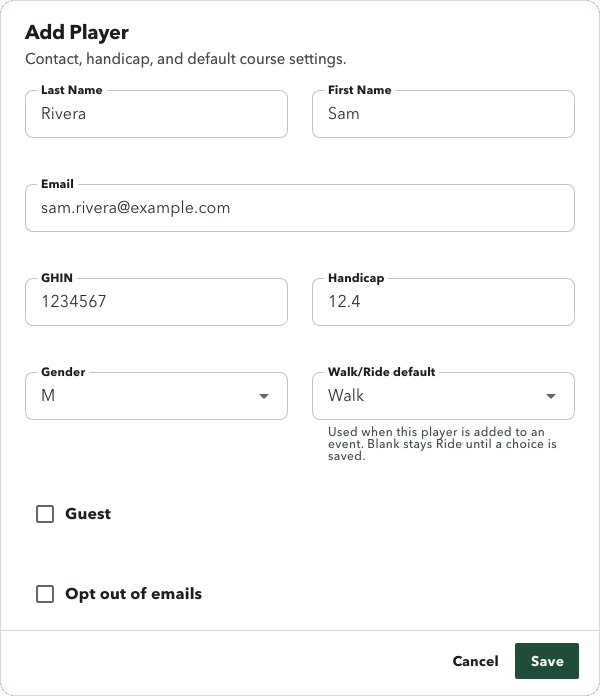
From the Roster page, click Add Player.
Enter the player's first and last name. Email, GHIN, Handicap Index, and gender are optional.
Choose Walk or Ride when you know how that player usually gets around the course. If you leave Walk/Ride blank, the player rides when added to an event until you save a choice.
Mark Guest for someone visiting with the group. You choose that guest's host later, on the event, with Select Host. Check Opt out of emails when the player should be left out of roster email.
Import Your Roster from a Spreadsheet
Already have your players in a spreadsheet? You can bring the entire group into Grey Tabby Golf instead of entering everyone individually.
Download the Sample CSV template, add your players' names and any available email addresses, GHIN numbers, and handicaps, then upload the completed file.
Before anything is saved, Grey Tabby Golf shows you a preview of the import. You can see which players will be added, which existing handicaps will be updated, and which entries may be duplicates.
Review the proposed changes, resolve any duplicate names, and confirm the import when everything looks right.
Your player information is now available for future events, and you can update handicaps through additional spreadsheet imports whenever necessary.
Manage Handicaps and Player Information
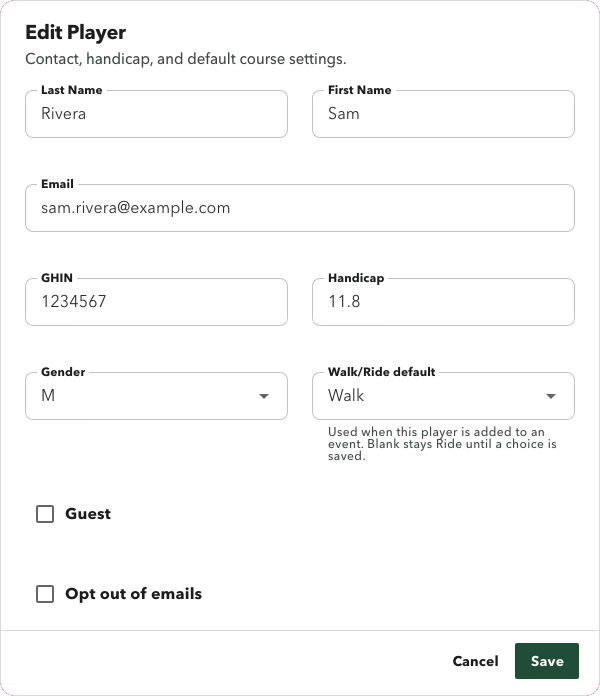
Open a player and choose Edit Player when a Handicap Index, email, GHIN, or other detail changes. You can also change the handicap, GHIN, or email directly on the roster.
You can update several handicaps at once with the same spreadsheet import. A matching row changes the Handicap Index and leaves the rest of that player alone.
Grey Tabby Golf stores the GHIN number you enter. You update the index when you want it updated. It does not look up a new handicap for you.
Save Tee Preferences for Each Course
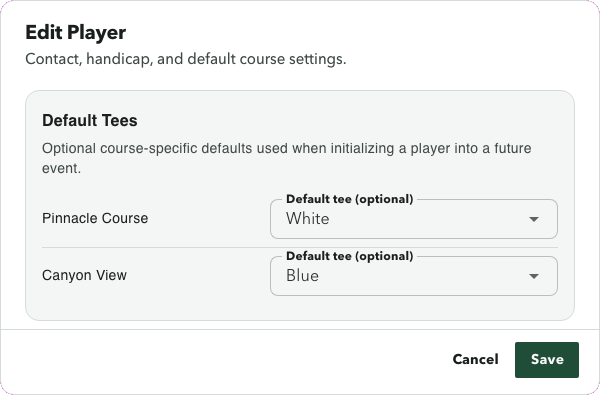
Once a course is in your group, open the player and use Default Tees. Each course has its own optional default tee.
A player might use the White tees at the home course and the Blue tees when the group plays somewhere else. Those choices are ready when that player is added to a future event at that course.
Changing the tee for one event does not replace a default you already saved for that course. If the player does not have a saved tee yet, the tee you assign on the event is kept as the default for that course.
Ready for Your Next Event
Your player information is saved and available for future events, so you don't have to enter everyone again.
When you are ready to invite the group, the signup email goes to roster players who have an email address and have not opted out. Guests are not included.
Flights can use the Handicap Index already stored on each player. After players respond, you can automatically assign flights and generate playing groups for the golfers in that week.
Start a 30-day free trial
A payment method is required. Billing starts when the trial ends unless you cancel.